> ## Documentation Index
> Fetch the complete documentation index at: https://docs.datarm.ai/llms.txt
> Use this file to discover all available pages before exploring further.
# Knowledge Search
> RAG-powered semantic search across your SharePoint documents and knowledge bases
## Overview
Knowledge Search uses Retrieval Augmented Generation (RAG) to provide intelligent, semantic search across your SharePoint document libraries. Unlike traditional keyword search, Knowledge Search understands the meaning of your questions and finds relevant information even when exact keywords don't match.
Understands intent, not just keywords
Search multiple document collections simultaneously
Every answer includes citations to source documents
Automatically updates when documents change
## What is a Corpus?
A **corpus** is a collection of documents from a SharePoint site or document library that has been:
* Embedded (converted to vector representations)
* Indexed for semantic search
* Made searchable through AVA
Think of it as creating a "knowledge base" from your documents.
### Example Corpora
**Contracts Corpus**
* Source: Legal/Contracts SharePoint library
* 350 vendor and customer contracts
* Auto-sync: ON
* Field extraction: Company Name, Contract Type, Effective Date, Value
**Use Case**: "Find all contracts with auto-renewal clauses"
**Employee Handbook Corpus**
* Source: HR Policies SharePoint site
* 45 policy documents
* Auto-sync: ON
* Field extraction: Policy Name, Department, Last Updated
**Use Case**: "What's the remote work policy?"
**Technical Documentation Corpus**
* Source: Support/Documentation library
* 200+ troubleshooting guides
* Auto-sync: ON
* Field extraction: Product, Issue Category, Severity
**Use Case**: "How do I troubleshoot login timeouts?"
**Proposal Library Corpus**
* Source: Sales/Proposals SharePoint
* Past winning proposals
* Auto-sync: OFF (historical reference)
* Field extraction: Customer Industry, Deal Size, Product
**Use Case**: "Find proposals for healthcare customers"
## Creating a Corpus
Click "Knowledge Search" in AVA navigation
Opens corpus creation dialog
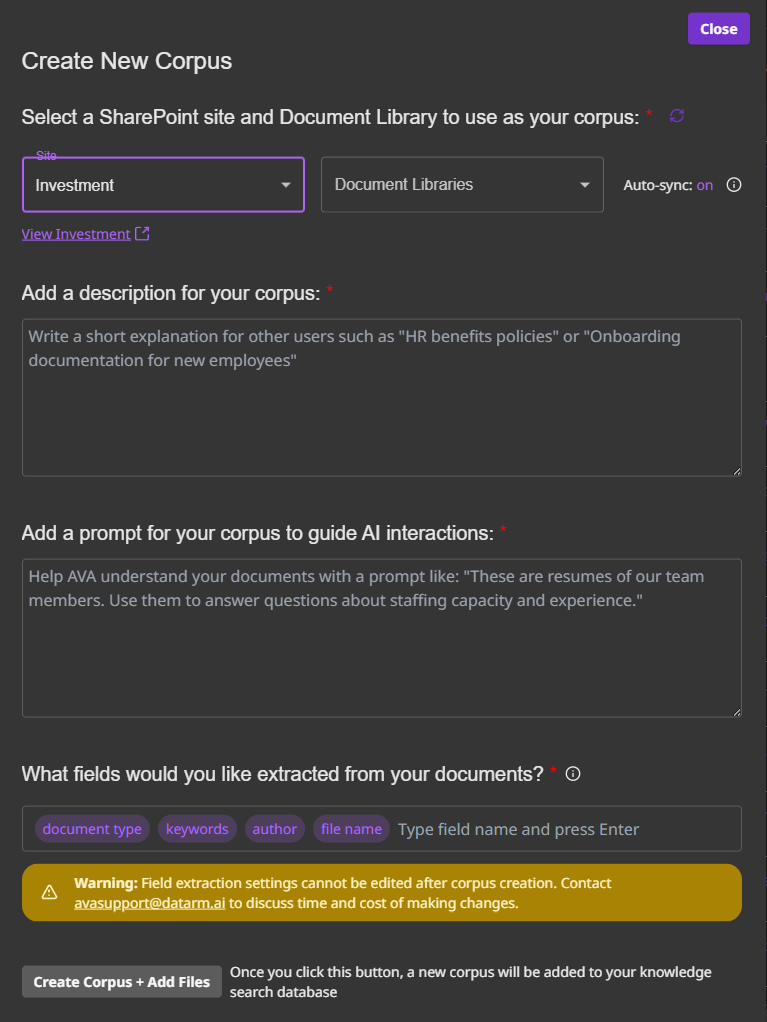 * Choose from dropdown of available sites
* Must have read access to the site
* Can preview site contents
* Choose specific library within site
* See document count preview
* Supported types: PDF, Word, Excel, PowerPoint, text
Write clear description:
"Contains all vendor contracts from 2020-present.
Use for contract term searches, renewal dates, and
clause analysis."
Good descriptions help users know when to use this corpus.
**Auto-Sync ON**: AVA periodically checks SharePoint for:
* New documents (added automatically)
* Modified documents (re-embedded)
* Deleted documents (removed from corpus)
**Auto-Sync OFF**: Corpus is static, manual updates only
**Recommendation**: ON for active document libraries
* Choose from dropdown of available sites
* Must have read access to the site
* Can preview site contents
* Choose specific library within site
* See document count preview
* Supported types: PDF, Word, Excel, PowerPoint, text
Write clear description:
"Contains all vendor contracts from 2020-present.
Use for contract term searches, renewal dates, and
clause analysis."
Good descriptions help users know when to use this corpus.
**Auto-Sync ON**: AVA periodically checks SharePoint for:
* New documents (added automatically)
* Modified documents (re-embedded)
* Deleted documents (removed from corpus)
**Auto-Sync OFF**: Corpus is static, manual updates only
**Recommendation**: ON for active document libraries
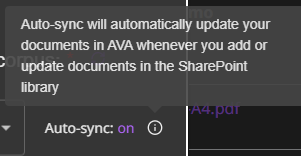 Extract custom fields from documents for enhanced filtering:
Common fields:
* document\_type: Contract, Policy, Guide
* department: Sales, Legal, Engineering
* date: Effective date, creation date
* author: Document creator
* company: Customer or vendor name
* keywords: Custom tags
**Note**: Field extraction cannot be changed after creation.
* Click "Create Corpus + Add Files"
* AVA begins embedding documents
* Processing time: \~1 minute per 10 documents
* You can leave and return later
## Using Knowledge Search
### Basic Search
Click "@ Connected Data" button, choose corpus from dropdown
Example: Select "@Contracts Demo"
**Tip**: You can select multiple corpora to search simultaneously
Type your question in natural language:
Examples:
* "Find contracts with termination for convenience clauses"
* "What are the indemnification terms in customer contracts?"
* "Show me all contracts expiring in Q1 2025"
AVA returns:
* **Answer**: AI-generated response synthesizing relevant information
* **Sources**: Links to specific documents with relevance scores
* **Excerpts**: Relevant passages highlighted
Each source is clickable to open full document
Ask follow-up questions:
* "Which of these have the shortest notice period?"
* "Compare the payment terms across these contracts"
* "Show me the specific contract language"
### Advanced Search Techniques
Search across multiple knowledge bases simultaneously:
**Select multiple corpora**:
* @Contracts Demo
* @Vendor Agreements
* @MSAs (Master Service Agreements)
**Ask**: "Find all payment terms across all contract types"
**Result**: AVA searches all three corpora and synthesizes results
**Use Case**: Comprehensive research across document types
If corpus has field extraction configured:
**Query**: "Find contracts where document\_type='MSA' and company contains 'Tech'"
**AVA filters** documents matching criteria before searching content
**Use Case**: Narrow search to specific document categories
**Query**: "Show contracts signed in 2024"
AVA understands temporal queries and filters accordingly
**More examples**:
* "Policies updated in the last 6 months"
* "Guides created this year"
* "Contracts expiring next quarter"
**Query**: "Compare payment terms in Microsoft contract vs Salesforce contract"
AVA retrieves both documents and provides side-by-side comparison
**More examples**:
* "How does our current PTO policy differ from the 2020 version?"
* "Compare indemnification clauses across top 5 contracts"
**Query**: "Create a table of all contracts with columns: Company, Value, Expiration Date, Auto-Renewal"
AVA extracts structured data from multiple documents
**Export**: Can export table to Excel
**Use Case**: Data extraction and analysis
## Managing Corpora
### Corpus Dashboard
View all your corpora and manage embedded files:
Extract custom fields from documents for enhanced filtering:
Common fields:
* document\_type: Contract, Policy, Guide
* department: Sales, Legal, Engineering
* date: Effective date, creation date
* author: Document creator
* company: Customer or vendor name
* keywords: Custom tags
**Note**: Field extraction cannot be changed after creation.
* Click "Create Corpus + Add Files"
* AVA begins embedding documents
* Processing time: \~1 minute per 10 documents
* You can leave and return later
## Using Knowledge Search
### Basic Search
Click "@ Connected Data" button, choose corpus from dropdown
Example: Select "@Contracts Demo"
**Tip**: You can select multiple corpora to search simultaneously
Type your question in natural language:
Examples:
* "Find contracts with termination for convenience clauses"
* "What are the indemnification terms in customer contracts?"
* "Show me all contracts expiring in Q1 2025"
AVA returns:
* **Answer**: AI-generated response synthesizing relevant information
* **Sources**: Links to specific documents with relevance scores
* **Excerpts**: Relevant passages highlighted
Each source is clickable to open full document
Ask follow-up questions:
* "Which of these have the shortest notice period?"
* "Compare the payment terms across these contracts"
* "Show me the specific contract language"
### Advanced Search Techniques
Search across multiple knowledge bases simultaneously:
**Select multiple corpora**:
* @Contracts Demo
* @Vendor Agreements
* @MSAs (Master Service Agreements)
**Ask**: "Find all payment terms across all contract types"
**Result**: AVA searches all three corpora and synthesizes results
**Use Case**: Comprehensive research across document types
If corpus has field extraction configured:
**Query**: "Find contracts where document\_type='MSA' and company contains 'Tech'"
**AVA filters** documents matching criteria before searching content
**Use Case**: Narrow search to specific document categories
**Query**: "Show contracts signed in 2024"
AVA understands temporal queries and filters accordingly
**More examples**:
* "Policies updated in the last 6 months"
* "Guides created this year"
* "Contracts expiring next quarter"
**Query**: "Compare payment terms in Microsoft contract vs Salesforce contract"
AVA retrieves both documents and provides side-by-side comparison
**More examples**:
* "How does our current PTO policy differ from the 2020 version?"
* "Compare indemnification clauses across top 5 contracts"
**Query**: "Create a table of all contracts with columns: Company, Value, Expiration Date, Auto-Renewal"
AVA extracts structured data from multiple documents
**Export**: Can export table to Excel
**Use Case**: Data extraction and analysis
## Managing Corpora
### Corpus Dashboard
View all your corpora and manage embedded files:
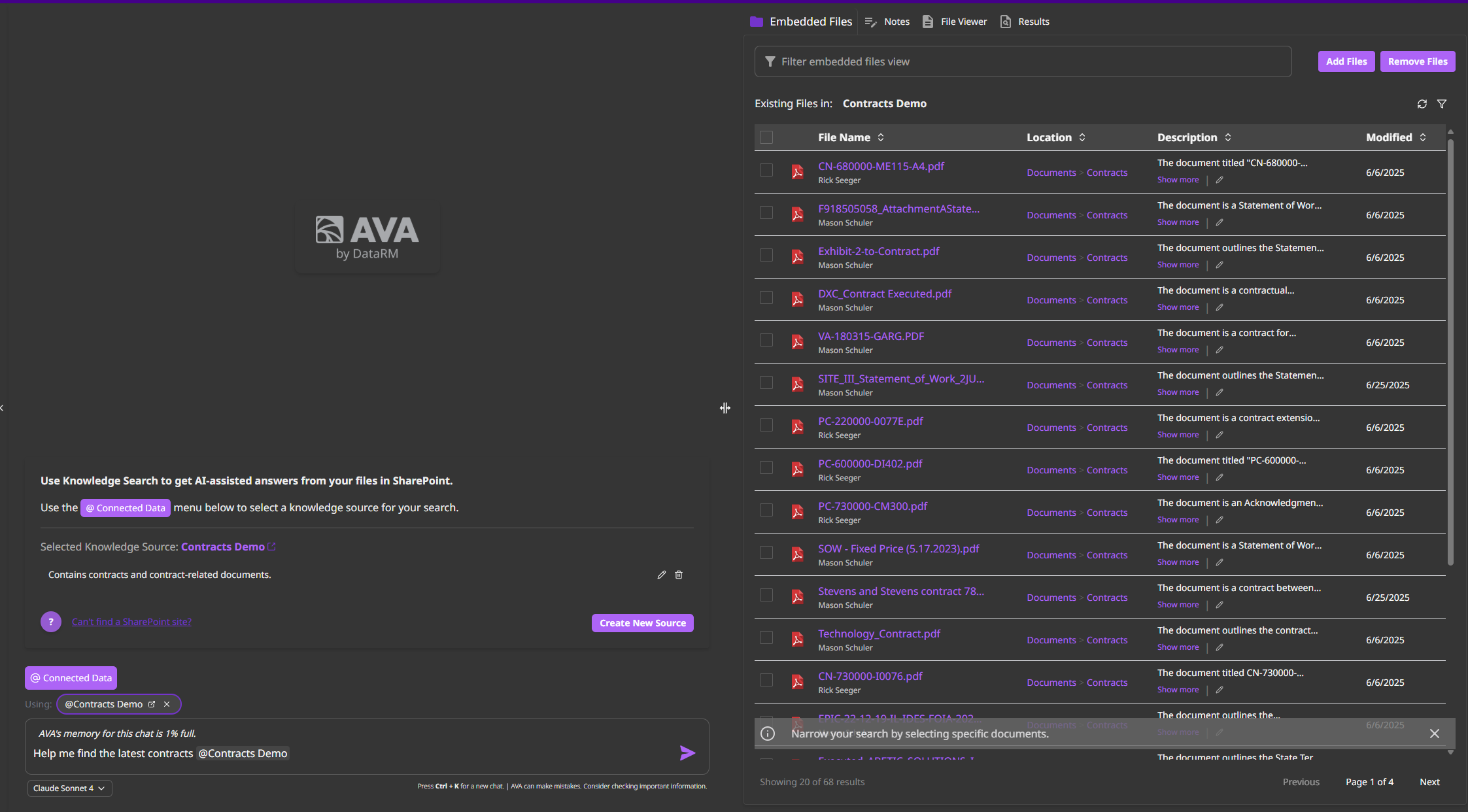 * All corpora you own or have access to
* Document count per corpus
* Last sync timestamp
* Storage size
* Most searched corpora
* Common queries
* User adoption metrics
* Performance stats
* See all documents in corpus
* Individual file status
* Add or remove specific files
* Re-embed modified documents
* Who has access
* Permission levels
* Share with teams or individuals
### Corpus Maintenance
**With Auto-Sync ON**:
* Add documents to SharePoint library
* AVA automatically detects and embeds
* Typically within 1 hour
**With Auto-Sync OFF**:
1. Navigate to corpus settings
2. Click "Add Files" button
3. Select files from SharePoint
4. Click "Embed Files"
**Manual Selection**:
* Choose specific documents to add
* Useful for selective corpus building
1. Open corpus embedded files view
2. Select documents to remove
3. Click "Remove Files" button
4. Documents removed from search immediately
**Note**: Original SharePoint files are not deleted
If document content changes:
**With Auto-Sync ON**: Automatic re-embedding
**With Auto-Sync OFF**:
1. Embedded files view
2. Select modified documents
3. Click "Re-Embed"
**When to re-embed**:
* Document content significantly changed
* Want to pick up recent edits
* After field extraction rules change
Edit corpus settings:
* Description
* Auto-sync toggle (can enable/disable anytime)
* Sharing permissions
* Field extraction (view only, cannot edit)
**Storage Management**:
* See total storage used
* Remove unused documents
* Archive old corpora
## How Knowledge Search Works (Technical)
### The RAG Pipeline
When you create a corpus:
1. AVA connects to SharePoint using your delegated permissions
2. Downloads documents you have access to
3. Extracts text content from each file
4. Chunks documents into manageable segments (\~500 tokens each)
For each chunk:
1. Sent to embedding model (text-embedding-ada-002)
2. Converted to vector representation (1536 dimensions)
3. Vector stored in PostgreSQL with pgVector extension
4. Metadata stored: filename, page number, chunk position
When you search:
1. Your question is converted to vector embedding
2. pgVector performs similarity search across all embedded chunks
3. Top K most relevant chunks retrieved (typically 5-10)
4. Relevance scores calculated
Retrieved chunks sent to AI model as context:
1. Model receives: your question + relevant document excerpts
2. AI generates response based on actual content
3. Citations added automatically
4. Source documents linked
### Why This Works Better Than Keyword Search
| Keyword Search | Knowledge Search (RAG) |
| ------------------------------ | ---------------------------------- |
| Exact word matches only | Understands meaning and intent |
| Misses synonyms and variations | Finds semantically similar content |
| No context understanding | Considers document context |
| Returns documents, not answers | Generates specific answers |
| Manual review of results | AI-synthesized responses |
| No source attribution | Automatic citations |
**Example**:
**Query**: "What's our policy on working from home?"
**Keyword Search**:
* Might miss documents that say "remote work" or "telecommute"
* Returns list of potentially relevant documents
* You read through each to find answer
**Knowledge Search**:
* Finds documents about remote work, telecommuting, work-from-home
* Returns: "According to the Remote Work Policy (updated Jan 2024), employees can work from home up to 3 days per week with manager approval..."
* Includes link to exact policy document
## Use Cases by Department
### Legal Department
**Corpus**: All contracts (vendor, customer, partner)
**Common Searches**:
* "Find all contracts with limitation of liability caps under \$1M"
* "Which contracts allow assignment to affiliates?"
* "Show me indemnification obligations in SaaS contracts"
* "Create table of all contract renewal dates in next 90 days"
**Time Savings**: Days of manual review → Minutes
**Corpus**: Internal legal memos, case summaries, precedents
**Common Searches**:
* "Have we dealt with this issue before?"
* "Find similar disputes and their resolutions"
* "What was Legal's opinion on X in the past?"
**Benefit**: Institutional knowledge accessible instantly
**Corpus**: Regulatory documents, compliance policies
**Common Searches**:
* "What are GDPR requirements for data retention?"
* "Show me all data privacy policies"
* "What's required for SOC2 compliance?"
**Benefit**: Ensure compliance with current regulations
### HR Department
**Corpus**: Employee handbook, HR policies
**Use**: Answer employee questions instantly
"What's the parental leave policy?"
"How do I request PTO?"
**Corpus**: Benefits guides, provider documents
**Use**: Help employees understand benefits
"What dental plans are available?"
"How does HSA work?"
**Corpus**: Onboarding materials, training docs
**Use**: New hire questions
"What systems do I need access to?"
"What's the dress code?"
**Corpus**: HR process documentation
**Use**: HR team reference
"How do I process a termination?"
"What's the promotion approval process?"
### IT/Support
**Corpus**: Technical support documentation
**Searches**:
* "How to fix login timeout errors?"
* "Steps to reset user password"
* "Troubleshoot VPN connection issues"
**Benefit**: Faster ticket resolution
**Corpus**: User guides, tutorials
**Searches**:
* "How to set up multi-factor authentication?"
* "Steps to configure email on mobile"
* "How to access shared drives?"
**Benefit**: Self-service for users
**Corpus**: Architecture docs, runbooks
**Searches**:
* "Where is user data stored?"
* "What's the backup procedure?"
* "How to deploy to production?"
**Benefit**: Quick reference for team
### Sales & Marketing
**Corpus**: Competitive research, battle cards
**Use**: "How do we compare to Competitor X on feature Y?"
**Corpus**: Winning proposals and case studies
**Use**: "Find proposals for healthcare industry customers"
**Corpus**: Product specs, feature descriptions
**Use**: "What are the key features of Product X?"
**Corpus**: Success stories, testimonials
**Use**: "Find case studies showing ROI > 200%"
## Best Practices
Create separate corpora for different use cases:
✅ Good:
* "Vendor Contracts" corpus
* "Customer Contracts" corpus
* "NDAs" corpus
❌ Avoid:
* Single "All Contracts" corpus with everything
**Why**: More focused search, better results
Help users understand when to use each corpus:
✅ Good:
"Contains all active vendor contracts from 2022-present.
Use for: payment terms, renewal dates, SLA requirements.
Auto-synced daily."
❌ Avoid:
"Vendor stuff"
**Why**: Users find the right corpus faster
For document libraries that change frequently:
* Policy documents
* Active contracts
* Current product documentation
Turn OFF auto-sync for:
* Historical/archived documents
* Reference libraries that don't change
**Why**: Keep corpus current without manual work
Plan field extraction before creating corpus:
Useful fields:
* Document category/type
* Date (effective, expiration, creation)
* Company/customer name
* Department/owner
* Status (active, expired, draft)
**Why**: Enables filtered searches and better organization
After creating corpus, test with common questions:
1. Ask typical user questions
2. Verify relevant documents are returned
3. Check if answers are accurate
4. Refine corpus if needed
**Why**: Ensure corpus meets user needs
## Performance & Limits
* Max documents per corpus: 10,000
* Max file size: 50MB
* Supported types: PDF, Word, Excel, PowerPoint, TXT
* Vector search: Less than 1 second
* AI response generation: 3-8 seconds
* Typical total: 5-10 seconds per query
* Vectors stored in PostgreSQL with pgVector
* Original files remain in SharePoint
* Corpus metadata and embeddings: \~1MB per 100 pages
* No hard limit on concurrent searches
* Auto-scales with Azure Container Apps
* Performance degrades gracefully under load
## Troubleshooting
**Problem**: Search returns no relevant results
**Solutions**:
1. Try rephrasing question
2. Check if documents are actually embedded (view embedded files)
3. Verify you have access to source SharePoint library
4. Try broader search terms
5. Check if corpus needs re-embedding (if documents updated)
**Problem**: Results don't match question
**Solutions**:
1. Be more specific in query
2. Use field filters if available
3. Check corpus description - might be wrong corpus
4. Consider splitting corpus into more focused collections
5. Try different phrasing
**Problem**: Corpus taking long time to process
**Expected Times**:
* 10 documents: \~1 minute
* 100 documents: \~10 minutes
* 1000 documents: \~1-2 hours
**If slower**:
1. Check document sizes (large PDFs take longer)
2. Verify SharePoint connection stable
3. Check if multiple corpora processing simultaneously
**Problem**: New documents not appearing
**Solutions**:
1. Check auto-sync is enabled (corpus settings)
2. Verify you still have SharePoint access
3. Check sync frequency (typically hourly)
4. Manually trigger sync if needed
5. Check embedded files view for sync errors
## Next Steps
Step-by-step guide to creating and using a corpus
Learn field extraction, multi-corpus search, and more
See how teams use Knowledge Search
Tips for optimal corpus management
* All corpora you own or have access to
* Document count per corpus
* Last sync timestamp
* Storage size
* Most searched corpora
* Common queries
* User adoption metrics
* Performance stats
* See all documents in corpus
* Individual file status
* Add or remove specific files
* Re-embed modified documents
* Who has access
* Permission levels
* Share with teams or individuals
### Corpus Maintenance
**With Auto-Sync ON**:
* Add documents to SharePoint library
* AVA automatically detects and embeds
* Typically within 1 hour
**With Auto-Sync OFF**:
1. Navigate to corpus settings
2. Click "Add Files" button
3. Select files from SharePoint
4. Click "Embed Files"
**Manual Selection**:
* Choose specific documents to add
* Useful for selective corpus building
1. Open corpus embedded files view
2. Select documents to remove
3. Click "Remove Files" button
4. Documents removed from search immediately
**Note**: Original SharePoint files are not deleted
If document content changes:
**With Auto-Sync ON**: Automatic re-embedding
**With Auto-Sync OFF**:
1. Embedded files view
2. Select modified documents
3. Click "Re-Embed"
**When to re-embed**:
* Document content significantly changed
* Want to pick up recent edits
* After field extraction rules change
Edit corpus settings:
* Description
* Auto-sync toggle (can enable/disable anytime)
* Sharing permissions
* Field extraction (view only, cannot edit)
**Storage Management**:
* See total storage used
* Remove unused documents
* Archive old corpora
## How Knowledge Search Works (Technical)
### The RAG Pipeline
When you create a corpus:
1. AVA connects to SharePoint using your delegated permissions
2. Downloads documents you have access to
3. Extracts text content from each file
4. Chunks documents into manageable segments (\~500 tokens each)
For each chunk:
1. Sent to embedding model (text-embedding-ada-002)
2. Converted to vector representation (1536 dimensions)
3. Vector stored in PostgreSQL with pgVector extension
4. Metadata stored: filename, page number, chunk position
When you search:
1. Your question is converted to vector embedding
2. pgVector performs similarity search across all embedded chunks
3. Top K most relevant chunks retrieved (typically 5-10)
4. Relevance scores calculated
Retrieved chunks sent to AI model as context:
1. Model receives: your question + relevant document excerpts
2. AI generates response based on actual content
3. Citations added automatically
4. Source documents linked
### Why This Works Better Than Keyword Search
| Keyword Search | Knowledge Search (RAG) |
| ------------------------------ | ---------------------------------- |
| Exact word matches only | Understands meaning and intent |
| Misses synonyms and variations | Finds semantically similar content |
| No context understanding | Considers document context |
| Returns documents, not answers | Generates specific answers |
| Manual review of results | AI-synthesized responses |
| No source attribution | Automatic citations |
**Example**:
**Query**: "What's our policy on working from home?"
**Keyword Search**:
* Might miss documents that say "remote work" or "telecommute"
* Returns list of potentially relevant documents
* You read through each to find answer
**Knowledge Search**:
* Finds documents about remote work, telecommuting, work-from-home
* Returns: "According to the Remote Work Policy (updated Jan 2024), employees can work from home up to 3 days per week with manager approval..."
* Includes link to exact policy document
## Use Cases by Department
### Legal Department
**Corpus**: All contracts (vendor, customer, partner)
**Common Searches**:
* "Find all contracts with limitation of liability caps under \$1M"
* "Which contracts allow assignment to affiliates?"
* "Show me indemnification obligations in SaaS contracts"
* "Create table of all contract renewal dates in next 90 days"
**Time Savings**: Days of manual review → Minutes
**Corpus**: Internal legal memos, case summaries, precedents
**Common Searches**:
* "Have we dealt with this issue before?"
* "Find similar disputes and their resolutions"
* "What was Legal's opinion on X in the past?"
**Benefit**: Institutional knowledge accessible instantly
**Corpus**: Regulatory documents, compliance policies
**Common Searches**:
* "What are GDPR requirements for data retention?"
* "Show me all data privacy policies"
* "What's required for SOC2 compliance?"
**Benefit**: Ensure compliance with current regulations
### HR Department
**Corpus**: Employee handbook, HR policies
**Use**: Answer employee questions instantly
"What's the parental leave policy?"
"How do I request PTO?"
**Corpus**: Benefits guides, provider documents
**Use**: Help employees understand benefits
"What dental plans are available?"
"How does HSA work?"
**Corpus**: Onboarding materials, training docs
**Use**: New hire questions
"What systems do I need access to?"
"What's the dress code?"
**Corpus**: HR process documentation
**Use**: HR team reference
"How do I process a termination?"
"What's the promotion approval process?"
### IT/Support
**Corpus**: Technical support documentation
**Searches**:
* "How to fix login timeout errors?"
* "Steps to reset user password"
* "Troubleshoot VPN connection issues"
**Benefit**: Faster ticket resolution
**Corpus**: User guides, tutorials
**Searches**:
* "How to set up multi-factor authentication?"
* "Steps to configure email on mobile"
* "How to access shared drives?"
**Benefit**: Self-service for users
**Corpus**: Architecture docs, runbooks
**Searches**:
* "Where is user data stored?"
* "What's the backup procedure?"
* "How to deploy to production?"
**Benefit**: Quick reference for team
### Sales & Marketing
**Corpus**: Competitive research, battle cards
**Use**: "How do we compare to Competitor X on feature Y?"
**Corpus**: Winning proposals and case studies
**Use**: "Find proposals for healthcare industry customers"
**Corpus**: Product specs, feature descriptions
**Use**: "What are the key features of Product X?"
**Corpus**: Success stories, testimonials
**Use**: "Find case studies showing ROI > 200%"
## Best Practices
Create separate corpora for different use cases:
✅ Good:
* "Vendor Contracts" corpus
* "Customer Contracts" corpus
* "NDAs" corpus
❌ Avoid:
* Single "All Contracts" corpus with everything
**Why**: More focused search, better results
Help users understand when to use each corpus:
✅ Good:
"Contains all active vendor contracts from 2022-present.
Use for: payment terms, renewal dates, SLA requirements.
Auto-synced daily."
❌ Avoid:
"Vendor stuff"
**Why**: Users find the right corpus faster
For document libraries that change frequently:
* Policy documents
* Active contracts
* Current product documentation
Turn OFF auto-sync for:
* Historical/archived documents
* Reference libraries that don't change
**Why**: Keep corpus current without manual work
Plan field extraction before creating corpus:
Useful fields:
* Document category/type
* Date (effective, expiration, creation)
* Company/customer name
* Department/owner
* Status (active, expired, draft)
**Why**: Enables filtered searches and better organization
After creating corpus, test with common questions:
1. Ask typical user questions
2. Verify relevant documents are returned
3. Check if answers are accurate
4. Refine corpus if needed
**Why**: Ensure corpus meets user needs
## Performance & Limits
* Max documents per corpus: 10,000
* Max file size: 50MB
* Supported types: PDF, Word, Excel, PowerPoint, TXT
* Vector search: Less than 1 second
* AI response generation: 3-8 seconds
* Typical total: 5-10 seconds per query
* Vectors stored in PostgreSQL with pgVector
* Original files remain in SharePoint
* Corpus metadata and embeddings: \~1MB per 100 pages
* No hard limit on concurrent searches
* Auto-scales with Azure Container Apps
* Performance degrades gracefully under load
## Troubleshooting
**Problem**: Search returns no relevant results
**Solutions**:
1. Try rephrasing question
2. Check if documents are actually embedded (view embedded files)
3. Verify you have access to source SharePoint library
4. Try broader search terms
5. Check if corpus needs re-embedding (if documents updated)
**Problem**: Results don't match question
**Solutions**:
1. Be more specific in query
2. Use field filters if available
3. Check corpus description - might be wrong corpus
4. Consider splitting corpus into more focused collections
5. Try different phrasing
**Problem**: Corpus taking long time to process
**Expected Times**:
* 10 documents: \~1 minute
* 100 documents: \~10 minutes
* 1000 documents: \~1-2 hours
**If slower**:
1. Check document sizes (large PDFs take longer)
2. Verify SharePoint connection stable
3. Check if multiple corpora processing simultaneously
**Problem**: New documents not appearing
**Solutions**:
1. Check auto-sync is enabled (corpus settings)
2. Verify you still have SharePoint access
3. Check sync frequency (typically hourly)
4. Manually trigger sync if needed
5. Check embedded files view for sync errors
## Next Steps
Step-by-step guide to creating and using a corpus
Learn field extraction, multi-corpus search, and more
See how teams use Knowledge Search
Tips for optimal corpus management