> ## Documentation Index
> Fetch the complete documentation index at: https://docs.datarm.ai/llms.txt
> Use this file to discover all available pages before exploring further.
# AVA Chat
> Conversational AI with connected data access via @ mentions
## Overview
AVA Chat is your conversational AI interface that connects to all your enterprise data sources. Using simple `@` mentions, you can query Microsoft 365, Salesforce, Jira, GitHub, and other business systems—all within a single conversation.
Chat naturally with AVA like you would with a colleague
Type @ to instantly access any connected data source
Combine information from multiple systems in one response
Access all your past conversations with full context
## The @ Mention System
### How It Works
Start typing `@` in any message and AVA shows you available data sources:
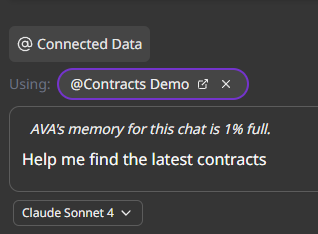 ```
@Calendar - Microsoft Calendar
@Mail - Outlook Email
@Files - OneDrive & SharePoint
@Salesforce - CRM Data
@Jira - Issues & Projects
@GitHub - Repositories & Code
@Teams - Teams Messages
@Security - Microsoft Defender
```
### Example Conversations
**You**: @Calendar what meetings do I have today?
**AVA**: You have 4 meetings today:
* 9am: Team Standup
* 11am: Client Call with Acme Corp (Sarah Johnson)
* 2pm: Pipeline Review
* 4pm: 1:1 with Manager
**You**: @Salesforce get details on the Acme Corp opportunity
**AVA**: Acme Corp opportunity:
* Value: \$250,000 ARR
* Stage: Proposal/Price Quote
* Close Date: End of Q1
* Last Activity: Proposal sent 3 days ago
* Next Steps: Follow-up call scheduled (today's 11am meeting)
**You**: Draft a follow-up email for after our call
**AVA**: \[Generates personalized email using context from both systems]
**You**: @Jira show my open issues
**AVA**: You have 5 open issues:
1. FE-123: Fix login button styling (In Progress)
2. BE-456: API response timeout (To Do)
3. FE-789: Add dark mode toggle (In Review)
...
**You**: @GitHub show PR status for FE-789
**AVA**: PR #234 for dark mode toggle:
* Status: Open, awaiting review
* 2 approvals required, 1 received
* All checks passing
* Reviewer: @john-smith requested changes yesterday
**You**: What changes did John request?
**AVA**: \[Shows review comments with context]
**You**: @Calendar summarize my week
**AVA**: This week you had 18 meetings across 5 days:
* 6 customer meetings
* 4 internal team meetings
* 3 board prep sessions
* 5 1:1s with direct reports
**You**: Access the recorded board prep meetings and create talking points
**AVA**: \[Lists meetings] Would you like me to:
1. Summarize key discussion points
2. Extract action items
3. Create board presentation outline
**You**: All three, and export to PowerPoint
**AVA**: \[Processes meetings and generates presentation]
## Connected Data Sources
### Microsoft 365 Integration
**What you can do:**
* Check your schedule
* Find meetings by attendee or topic
* See availability
* Get meeting details and participants
**Examples:**
* "What's on my calendar tomorrow?"
* "When is my next meeting with Sarah?"
* "Am I free Thursday afternoon?"
* "Show me all meetings this week about the Q4 project"
**What you can do:**
* Search your inbox and sent items
* Find emails by sender, subject, or content
* Get email summaries
* Draft replies
**Examples:**
* "Find emails from John about the contract"
* "Summarize my unread emails from today"
* "Show me the last email thread with Acme Corp"
* "Draft a follow-up email to Sarah's question"
**What you can do:**
* Search for documents
* Access file content
* Find files by name, type, or modified date
* Get document summaries
**Examples:**
* "Find my Q4 budget spreadsheet"
* "Show me all PowerPoint presentations from last month"
* "What's in the Project Alpha folder?"
* "Summarize the contract in the Legal folder"
**What you can do:**
* Access recorded meetings
* Search team conversations
* Get meeting transcripts
* Find shared files
**Examples:**
* "Show me recordings from last week's standup"
* "What was discussed in the Q4 planning meeting?"
* "Find the Teams conversation about the bug fix"
### Business Applications
**CRM Data Access:**
* Query opportunities, leads, cases, accounts, contacts
* Update CRM records
* Create new records
* Generate reports
**Common Queries:**
* "Show all opportunities closing this quarter"
* "Get details on the Acme Corp account"
* "Find all open cases assigned to me"
* "Create a new lead for Company X"
* "Update opportunity ABC123 stage to Closed Won"
**Data You Can Access:**
* Opportunities (pipeline, stages, values, dates)
* Leads (new prospects, qualification status)
* Cases (support tickets, status, resolution)
* Accounts (company information, history)
* Contacts (people, roles, interactions)
* Custom objects (your org-specific data)
**Project Management:**
* Query issues and projects
* Check sprint status
* Update issue status
* Link issues
**Common Queries:**
* "Show my open issues"
* "What's in the current sprint?"
* "Get details on issue ABC-123"
* "Update issue XYZ-456 status to In Progress"
* "List all bugs in the Mobile project"
**Data You Can Access:**
* Issues (bugs, tasks, stories)
* Projects (project status, members)
* Sprints (sprint contents, velocity)
* Boards (Kanban, Scrum boards)
* Comments and activity
**Code Repository Access:**
* Search repositories
* Check PR status
* Review commits
* Find issues
**Common Queries:**
* "Show open PRs in the main repo"
* "Get details on PR #123"
* "Find commits by author in the last week"
* "Show issues labeled 'bug'"
* "Search code for function name X"
**Data You Can Access:**
* Repositories (code, branches)
* Pull Requests (status, reviews, checks)
* Issues (bugs, feature requests)
* Commits (history, changes, authors)
* Code search
## Conversation Features
### Context Awareness
AVA remembers your conversation history:
```
You: @Salesforce show opportunities over $100K
AVA: [Shows 10 opportunities]
You: Which of these are closing this month?
AVA: [Filters the previous list - maintains context]
You: Send me details on the top 3
AVA: [Provides details on highest value opportunities from filtered list]
```
### Multi-Turn Dialogues
Have natural back-and-forth conversations:
```
You: I need to prepare for my client meeting tomorrow
AVA: I can help with that. Who are you meeting with?
You: Acme Corp
AVA: I found your 11am meeting with Sarah Johnson from Acme Corp.
Would you like me to:
1. Pull their Salesforce account history
2. Find past email conversations
3. Create a meeting agenda
You: All three
AVA: [Executes all three tasks and presents comprehensive prep document]
```
### Cross-Source Intelligence
Combine information from multiple sources:
```
You: Analyze my team's productivity this sprint
AVA: [Pulling data from multiple sources...]
- @Jira: 45 issues completed (velocity: 89 points)
- @GitHub: 78 commits, 23 PRs merged
- @Calendar: 12 hours in meetings (20% of work week)
- @Mail: Average email response time: 2.3 hours
Analysis: Strong delivery sprint with good commit velocity.
Meeting time is within healthy range. Response time excellent.
```
## Session Management
### Session History
Access all your past conversations:
* Organized by recency (newest first)
* Search across all sessions
* Filter by date or content
* Resume any previous conversation
### Sharing Conversations
Share sessions with team members:
1. Click "Share" button in session
2. Select recipients (individuals or Microsoft 365 groups)
3. Recipients get full conversation context
4. Useful for handoffs and collaboration
## Export & Integration
### Export Options
Select messages to include as slides
Generate formatted document from conversation
Export data tables and analysis
### Copy & Paste
* Copy individual messages
* Copy entire conversation
* Preserve formatting
* Paste into any application
## Tips & Best Practices
Instead of: "Check my calendar"
Better: "@Calendar what meetings do I have this week?"
Explicitly using @ mentions helps AVA route your query to the right source faster.
Example: "@Calendar find my meeting with Acme Corp, then @Salesforce show their account history"
AVA can connect information across systems for comprehensive answers.
Don't start a new conversation for related questions. AVA maintains context.
First: "Show me Q4 opportunities"
Then: "Which ones are at risk?"
Then: "Draft an email to the account owners"
Set up custom instructions (in settings) for consistent behavior:
* Your role and preferences
* How you want data formatted
* Your working hours and timezone
* Specific terminology your team uses
If you ask the same question regularly, save it in the Prompt Library:
* "Weekly pipeline review"
* "Sprint status summary"
* "Email inbox triage"
Reuse prompts to save time.
## Common Questions
**Q: What data can AVA access?**
A: Only data you can access. AVA uses your delegated permissions—if you can't see a file in SharePoint, AVA can't either.
**Q: Is my data sent to OpenAI/Anthropic?**
A: Your organizational data stays in your Azure tenant. Only the AI-generated responses come from external providers.
**Q: Can AVA modify my data?**
A: Only if you explicitly ask (e.g., "Update this Salesforce record"). All modifications are logged.
**Q: How fast are responses?**
A: Typically 2-10 seconds depending on:
* Model selected (GPT-5 Nano/Mini, Flash, Haiku models faster than GPT-5 Pro/Opus models)
* Data source query complexity
* Amount of data to process
**Q: Can I use AVA offline?**
A: No, AVA requires internet connection to access connected data sources and AI models.
**Q: Is there a message limit?**
A: No hard limit, but very long conversations may hit model context limits (128K-1M tokens depending on model). Start a new session if needed.
**Q: Who can see my conversations?**
A: Only you, unless you explicitly share a session.
**Q: Are conversations logged?**
A: Yes, for audit and compliance purposes via Application Insights.
**Q: Can admins see my chats?**
A: Admins can access audit logs showing usage patterns, but not conversation content unless required for security/compliance investigation.
## Next Steps
Get started with your first conversation
Master the @ mention system
Create reusable prompts
Choose the right AI model
```
@Calendar - Microsoft Calendar
@Mail - Outlook Email
@Files - OneDrive & SharePoint
@Salesforce - CRM Data
@Jira - Issues & Projects
@GitHub - Repositories & Code
@Teams - Teams Messages
@Security - Microsoft Defender
```
### Example Conversations
**You**: @Calendar what meetings do I have today?
**AVA**: You have 4 meetings today:
* 9am: Team Standup
* 11am: Client Call with Acme Corp (Sarah Johnson)
* 2pm: Pipeline Review
* 4pm: 1:1 with Manager
**You**: @Salesforce get details on the Acme Corp opportunity
**AVA**: Acme Corp opportunity:
* Value: \$250,000 ARR
* Stage: Proposal/Price Quote
* Close Date: End of Q1
* Last Activity: Proposal sent 3 days ago
* Next Steps: Follow-up call scheduled (today's 11am meeting)
**You**: Draft a follow-up email for after our call
**AVA**: \[Generates personalized email using context from both systems]
**You**: @Jira show my open issues
**AVA**: You have 5 open issues:
1. FE-123: Fix login button styling (In Progress)
2. BE-456: API response timeout (To Do)
3. FE-789: Add dark mode toggle (In Review)
...
**You**: @GitHub show PR status for FE-789
**AVA**: PR #234 for dark mode toggle:
* Status: Open, awaiting review
* 2 approvals required, 1 received
* All checks passing
* Reviewer: @john-smith requested changes yesterday
**You**: What changes did John request?
**AVA**: \[Shows review comments with context]
**You**: @Calendar summarize my week
**AVA**: This week you had 18 meetings across 5 days:
* 6 customer meetings
* 4 internal team meetings
* 3 board prep sessions
* 5 1:1s with direct reports
**You**: Access the recorded board prep meetings and create talking points
**AVA**: \[Lists meetings] Would you like me to:
1. Summarize key discussion points
2. Extract action items
3. Create board presentation outline
**You**: All three, and export to PowerPoint
**AVA**: \[Processes meetings and generates presentation]
## Connected Data Sources
### Microsoft 365 Integration
**What you can do:**
* Check your schedule
* Find meetings by attendee or topic
* See availability
* Get meeting details and participants
**Examples:**
* "What's on my calendar tomorrow?"
* "When is my next meeting with Sarah?"
* "Am I free Thursday afternoon?"
* "Show me all meetings this week about the Q4 project"
**What you can do:**
* Search your inbox and sent items
* Find emails by sender, subject, or content
* Get email summaries
* Draft replies
**Examples:**
* "Find emails from John about the contract"
* "Summarize my unread emails from today"
* "Show me the last email thread with Acme Corp"
* "Draft a follow-up email to Sarah's question"
**What you can do:**
* Search for documents
* Access file content
* Find files by name, type, or modified date
* Get document summaries
**Examples:**
* "Find my Q4 budget spreadsheet"
* "Show me all PowerPoint presentations from last month"
* "What's in the Project Alpha folder?"
* "Summarize the contract in the Legal folder"
**What you can do:**
* Access recorded meetings
* Search team conversations
* Get meeting transcripts
* Find shared files
**Examples:**
* "Show me recordings from last week's standup"
* "What was discussed in the Q4 planning meeting?"
* "Find the Teams conversation about the bug fix"
### Business Applications
**CRM Data Access:**
* Query opportunities, leads, cases, accounts, contacts
* Update CRM records
* Create new records
* Generate reports
**Common Queries:**
* "Show all opportunities closing this quarter"
* "Get details on the Acme Corp account"
* "Find all open cases assigned to me"
* "Create a new lead for Company X"
* "Update opportunity ABC123 stage to Closed Won"
**Data You Can Access:**
* Opportunities (pipeline, stages, values, dates)
* Leads (new prospects, qualification status)
* Cases (support tickets, status, resolution)
* Accounts (company information, history)
* Contacts (people, roles, interactions)
* Custom objects (your org-specific data)
**Project Management:**
* Query issues and projects
* Check sprint status
* Update issue status
* Link issues
**Common Queries:**
* "Show my open issues"
* "What's in the current sprint?"
* "Get details on issue ABC-123"
* "Update issue XYZ-456 status to In Progress"
* "List all bugs in the Mobile project"
**Data You Can Access:**
* Issues (bugs, tasks, stories)
* Projects (project status, members)
* Sprints (sprint contents, velocity)
* Boards (Kanban, Scrum boards)
* Comments and activity
**Code Repository Access:**
* Search repositories
* Check PR status
* Review commits
* Find issues
**Common Queries:**
* "Show open PRs in the main repo"
* "Get details on PR #123"
* "Find commits by author in the last week"
* "Show issues labeled 'bug'"
* "Search code for function name X"
**Data You Can Access:**
* Repositories (code, branches)
* Pull Requests (status, reviews, checks)
* Issues (bugs, feature requests)
* Commits (history, changes, authors)
* Code search
## Conversation Features
### Context Awareness
AVA remembers your conversation history:
```
You: @Salesforce show opportunities over $100K
AVA: [Shows 10 opportunities]
You: Which of these are closing this month?
AVA: [Filters the previous list - maintains context]
You: Send me details on the top 3
AVA: [Provides details on highest value opportunities from filtered list]
```
### Multi-Turn Dialogues
Have natural back-and-forth conversations:
```
You: I need to prepare for my client meeting tomorrow
AVA: I can help with that. Who are you meeting with?
You: Acme Corp
AVA: I found your 11am meeting with Sarah Johnson from Acme Corp.
Would you like me to:
1. Pull their Salesforce account history
2. Find past email conversations
3. Create a meeting agenda
You: All three
AVA: [Executes all three tasks and presents comprehensive prep document]
```
### Cross-Source Intelligence
Combine information from multiple sources:
```
You: Analyze my team's productivity this sprint
AVA: [Pulling data from multiple sources...]
- @Jira: 45 issues completed (velocity: 89 points)
- @GitHub: 78 commits, 23 PRs merged
- @Calendar: 12 hours in meetings (20% of work week)
- @Mail: Average email response time: 2.3 hours
Analysis: Strong delivery sprint with good commit velocity.
Meeting time is within healthy range. Response time excellent.
```
## Session Management
### Session History
Access all your past conversations:
* Organized by recency (newest first)
* Search across all sessions
* Filter by date or content
* Resume any previous conversation
### Sharing Conversations
Share sessions with team members:
1. Click "Share" button in session
2. Select recipients (individuals or Microsoft 365 groups)
3. Recipients get full conversation context
4. Useful for handoffs and collaboration
## Export & Integration
### Export Options
Select messages to include as slides
Generate formatted document from conversation
Export data tables and analysis
### Copy & Paste
* Copy individual messages
* Copy entire conversation
* Preserve formatting
* Paste into any application
## Tips & Best Practices
Instead of: "Check my calendar"
Better: "@Calendar what meetings do I have this week?"
Explicitly using @ mentions helps AVA route your query to the right source faster.
Example: "@Calendar find my meeting with Acme Corp, then @Salesforce show their account history"
AVA can connect information across systems for comprehensive answers.
Don't start a new conversation for related questions. AVA maintains context.
First: "Show me Q4 opportunities"
Then: "Which ones are at risk?"
Then: "Draft an email to the account owners"
Set up custom instructions (in settings) for consistent behavior:
* Your role and preferences
* How you want data formatted
* Your working hours and timezone
* Specific terminology your team uses
If you ask the same question regularly, save it in the Prompt Library:
* "Weekly pipeline review"
* "Sprint status summary"
* "Email inbox triage"
Reuse prompts to save time.
## Common Questions
**Q: What data can AVA access?**
A: Only data you can access. AVA uses your delegated permissions—if you can't see a file in SharePoint, AVA can't either.
**Q: Is my data sent to OpenAI/Anthropic?**
A: Your organizational data stays in your Azure tenant. Only the AI-generated responses come from external providers.
**Q: Can AVA modify my data?**
A: Only if you explicitly ask (e.g., "Update this Salesforce record"). All modifications are logged.
**Q: How fast are responses?**
A: Typically 2-10 seconds depending on:
* Model selected (GPT-5 Nano/Mini, Flash, Haiku models faster than GPT-5 Pro/Opus models)
* Data source query complexity
* Amount of data to process
**Q: Can I use AVA offline?**
A: No, AVA requires internet connection to access connected data sources and AI models.
**Q: Is there a message limit?**
A: No hard limit, but very long conversations may hit model context limits (128K-1M tokens depending on model). Start a new session if needed.
**Q: Who can see my conversations?**
A: Only you, unless you explicitly share a session.
**Q: Are conversations logged?**
A: Yes, for audit and compliance purposes via Application Insights.
**Q: Can admins see my chats?**
A: Admins can access audit logs showing usage patterns, but not conversation content unless required for security/compliance investigation.
## Next Steps
Get started with your first conversation
Master the @ mention system
Create reusable prompts
Choose the right AI model